PostgreSQL is a type of database that is also quite popular in the community besides MySQL or Oracle Database. Many people switch to PostgreSQL because of the various advantages it offers, such as user-level ease, data integrity, and sufficient performance in processing large enough data. In addition to its expertise in data processing, PostgreSQL is Open Source and compatible with various operating systems such as Linux, UNIX (AIX, BSD, HP-UX, SGI IRIX, Mac OS X, Solaris, Tru64), and Windows. Companies that use this database include Yahoo !, My Space, Skype and Sony Online. Because it is open source, of course you can get it for free at https://www.postgresql.org/ .
Import PostgreSQL via phpPgAdmin in cPanel
After you decide to create a program using PostgreSQL, the next step is to enter the website files and the hosting database. Then how do you enter the PostgreSQL database into hosting? Does PostgreSQL have a PostgreSQL client that can simplify data processing? Yes, of course. PostgreSQL has a PostgreSQL client called phpPgAdmin. phpPgAdmin is basically the same as PHPMyAdmin in MySQL. At KincaiHosting, you can use the phpPgAdmin in cPanel. As for the steps to import PostgreSQL in cPanel, namely,
1. Login cPanel Hosting
Enter your cpanel, then log in according to the email sent from KincaiHosting regarding Hosting Account Information
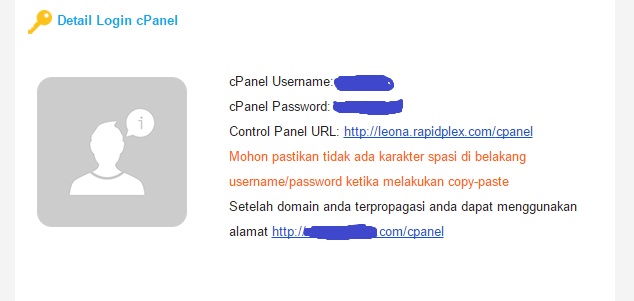
2. Choosing phpPgAdmin
Then you will enter the cpanel from hosting. In the search form, please write " phpPgAdmin". Then choose phpPgAdmin.
3. Creating a PostgreSQL Database
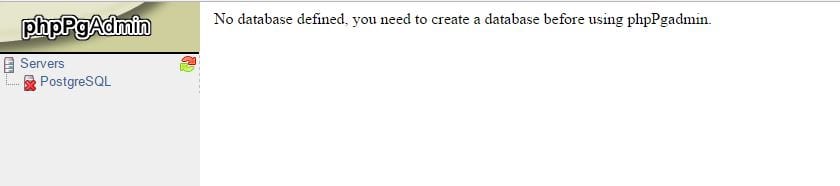
Then you will be directed to the phpPgAdmin page. If you haven't created a PostgreSQL database on hosting, an image will appear as below. For that anda harus membuat database PostgreSQL terlebih dahulu,. You can read the method in the Guide to Creating a PostgreSQL Database in cPanel .
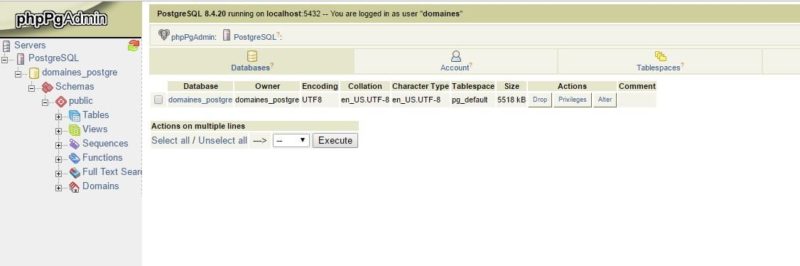
However, if you have created a PostgreSQL database, the phpPgAdmin page will look like the following image.
4. Import PostgreSQL Database
Then, click the desired database. The database that you choose will be imported into SQL. The import process is useful for entering sql data that has been previously backed up, so you don't have to repeat the database query from scratch.
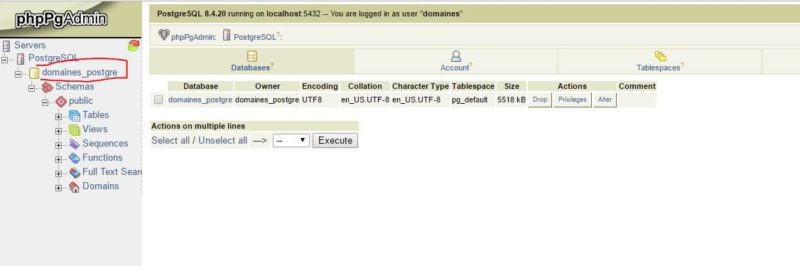
5. Choosing a Backup File
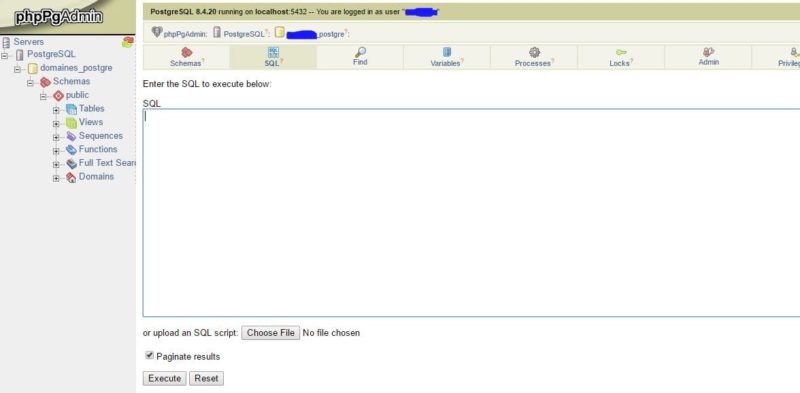
After that, the klik SQL. Then you will be directed to the SQL section. Please klik Choose Filechoose the backup file to import.
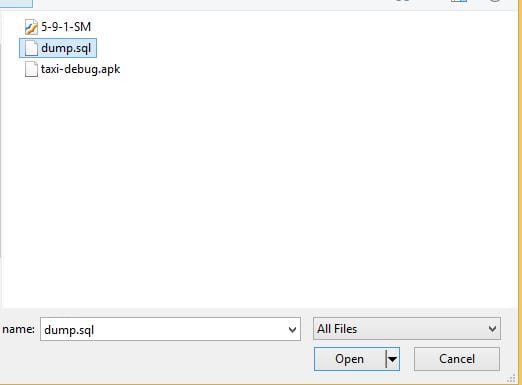
Select a backup file to import. Usually database backup files have the extension .sql. After that, please klik Open.
6. Import SQL
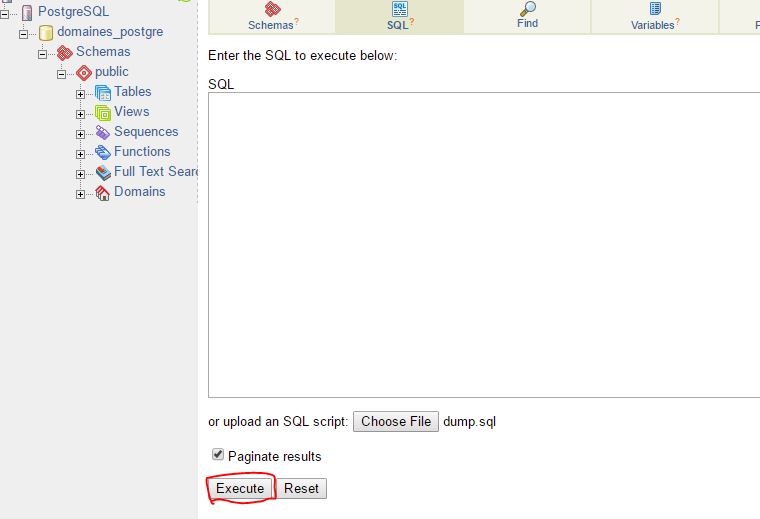
If you have finished selecting the backup file, then the next step is to let the sql file import properly in phpPgAdmin. As for the method, please klik Execute. And wait for the process to finish.
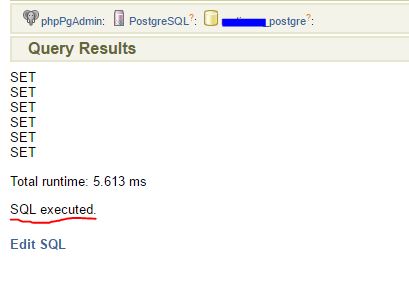
If SQL executedit says " " then the postgreSQL import has been successfully carried out.
Export PostgreSQL via phpPgAdmin
As for how to export PostgreSQL, please enter phpPgAdmin then click on the database name. Then click Export. Select Structure and datathen click Format SQL. In the Options column, click Downloadthen click Export. Wait a moment then a file with the .sql extension will appear.
Note: If the postgresql database file is large enough, you will usually get an error going through phpPgAdmin. So, you can use the PostgreSQL Import and Export Guide via the Command Line . But make sure you have a Super hosting package!
Closing
By using cheap hosting services at KincaiHosting, importing PostgreSQL on cPanel can be done easily. Through PostgreSQL Client such as phpPgAdmin, the database management process will be more enjoyable like MySQL on PHPMyAdmin. If you need assistance, please send a ticket via my.domainesia.com or send an email to support@safelink.asia. We are ready to help you 😀. Want to know what discounts are available at KincaiHosting? Please check the KincaiHosting Domain and Hosting Promo !