You already know that all hosting at KincaiHosting is equipped with Imunify360 antivirus. What is Imunify360? Imunify360 is an antivirus and anti-malware company developed by CloudLinux with AI technology and “Proactive Defense†for web hosting servers. For more details, you can read What is Imunify360. To use Imunify360 on Hosting, you can login directly to cPanel. So to make it clearer, this guide will explain step by step how to use Imunify360 on hosting.
How to Use Imunify360 on Hosting
All Hosting at KincaiHosting is equipped with Imunify360. And you can use this Imunify360 feature for FREE. All you need to do is log into cPanel only. As for how to use Imunify360 on Hosting, namely,
1. Login cPanel Hosting
The first step you have to do is login to cPanel. CPanel login can be via https://domainname / cpanel, according to the email sent from KincaiHosting regarding Hosting Account Information. For those of you who don't know how to log in to cPanel, please read on How to Login cPanel Hosting .
After successfully logging in to cPanel Hosting, please type “Imunify†in the search field. Then a menu will appear Imunify360. Please select the menu.
3. Check files that indicate malware.
There are 4 menus that you can choose, such as:
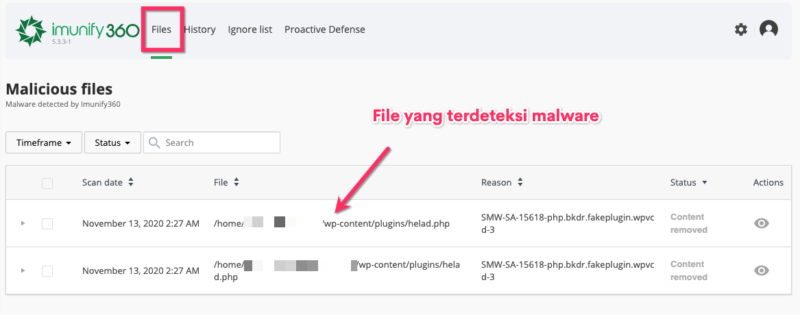
- Files : On this menu, there are several lists of files detected by malware, complete with reason (why malware / virus was detected), status (whether it has been removed, quarantine), and actions taken.
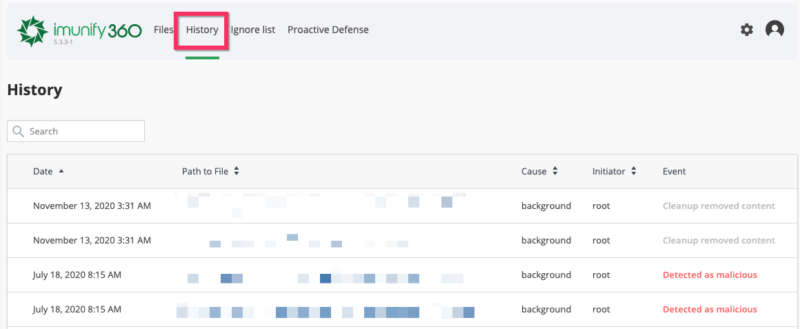
- History : This menu shows what activities you did or Imunify360 did automatically
- Ignore list: On this menu you can see some files that are left alone (If you select Add to Ignore List, several files will appear here)
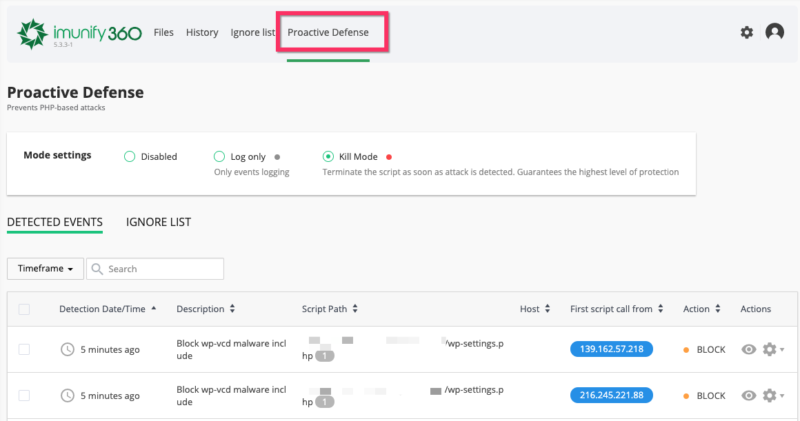
- Proactive Defense : In this menu, you are allowed to immediately carry out activities on files that are indicated by malware. You can do Kill Mode, Disabledor Log only.
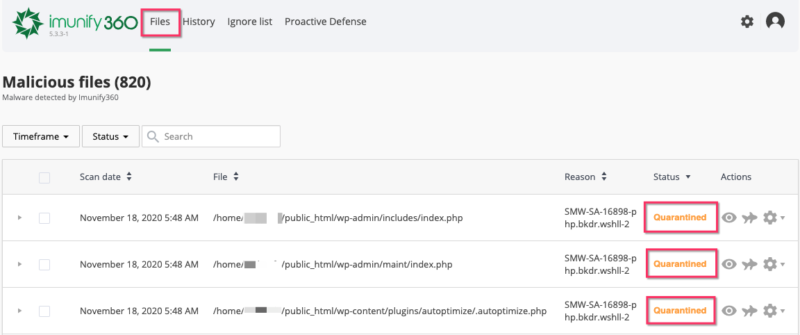
After knowing what menus are on Imunify360, now is the time to find out whether your website is exposed to malware or not. Please check the Menu Files. There are 5 statuses that will be displayed by Imunify360. That is:
- Infected: detected a malware / virus attack during the scanning process.
- Cleaned: files detected by malware have been cleaned by Imunif360
- Quarantined : the file has been moved to a certain place (quarantined so as not to spread)
- Content removed: the content in the detected file has been removed (it is clean)
- Cleanup in progress : files detected by malware / virus are being cleaned.
If the status is Infected:
- please click the image ikanto move it to quarantine (so that malware does not spread and the status becomes Quarantined)
- please click clean up allto remove the indicated malware without deleting the file.
If the status is Quarantined:
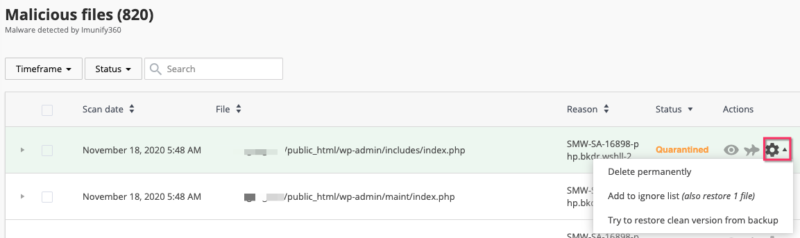
- you can do Delete permanently, Add to ignore (also restore 1 file)orTry to restore clean version from backup
4. Website protection with Imunify360
Like an antivirus, Imunify360 will perform scanning automatically. Imunify360 will inform the user that there are several files that are suspicious. There are several activities you can do:
- Delete permanently: Immediately delete files that indicate malware
- Add to ignore (also restore 1 file): Insert files that indicate malware into Ignore Listor skip scan (and consider them as safe files).
- Try to restore a clean version from backup: Take a backup of a clean version
Then what is chosen? The decision is yours! If indicated malware means the file is suspicious. Then you have to do Delete permanently. But also make sure that the file is not the main file. If you are confused, you can ask the KincaiHosting Support Team directly.
5. Activate Kill Mode in Proactive Defense.
One of the features of Imunify360 is Kill ModeProactive Defense. Kill ModeThis function is to deactivate (terminate) the website code script as soon as possible when an attack is detected. This is done so that the script does not spread to other files / databases.
As for the method, please click Proactive Defensethen click Kill Mode.
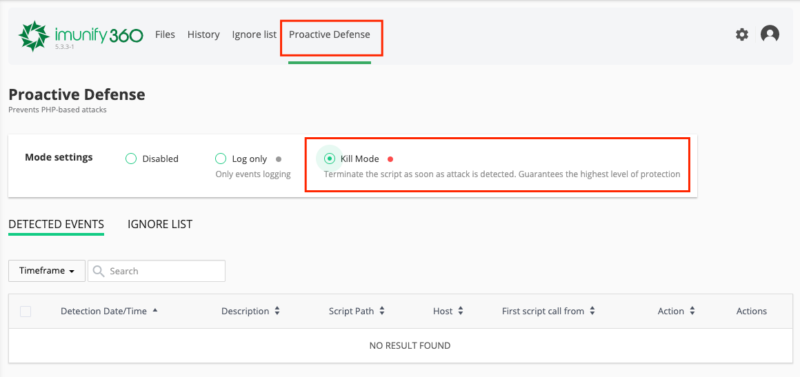
Later Imunify360 will detect it automatically and take action BLOCK.
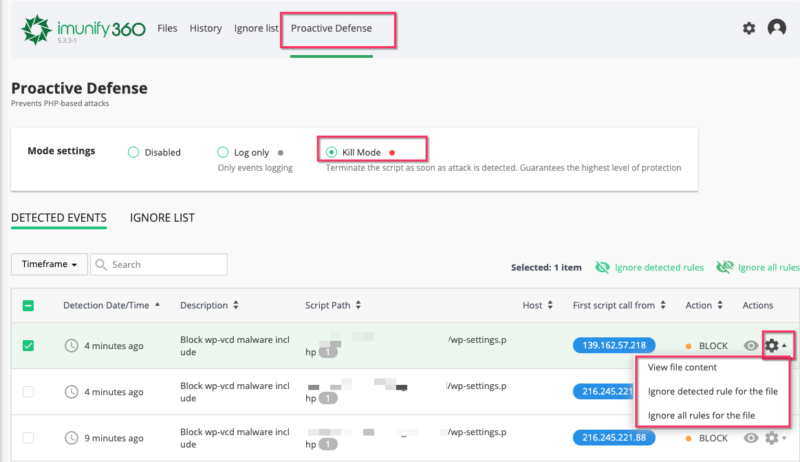
If you want to see the contents of the file, please click View file content. If you want to free / think this file is not dangerous, you can click Ignore detected rule for the fileor Ignore all rules for the file.
Conclusion
Malware protection on hosting can be done with Imunify360. Imunify360 can quarantine the detected viruses / malware. So that the virus does not spread to various files / databases. Coupled with the Proactive Defense Kill Mode feature, making this antivirus more sophisticated.